Smartphone Product Photography: How to Get Professional Results With Your Phone
Pro product photos from your phone: iPhone and Android settings, DIY lighting, backgrounds, and editing for Etsy and Shopify sellers.
You don't need a $2,000 camera to take product photos that sell. Modern smartphones rival entry-level DSLRs from a few years ago for ecommerce product photography use cases, where products are typically small, lit by controlled artificial light, and shot at close range. The difference between a phone photo that looks amateur and a phone photo that looks professional isn't the device. It's the technique, the lighting, and the settings.
This guide shows you exactly how to use your iPhone or Android phone for ecommerce product photography. Every setting, every lighting setup, and every workflow step is calibrated for the constraints of phone cameras (small sensors, limited zoom, fixed apertures) so you get the best possible results from the device you already own.
In testing FrameOnce against catalogs from sellers using everything from iPhones to full studio rigs, we've consistently found that a well-lit phone photo edited correctly looks indistinguishable from a DSLR shot in a finished listing. The bottleneck is almost never the camera.
New to product photography in general? Start with our complete product photography guide for the foundational concepts, then come back here for phone-specific techniques.
Why Smartphones Work for Product Photography
The cameras in 2026 flagship phones (iPhone 17 Pro, Pixel 10 Pro, Samsung Galaxy S26 Ultra) have sensors and processing that hold up well against entry-level dedicated cameras for the kind of controlled, close-range work ecommerce photography requires. For sellers shooting Etsy, Shopify, or Amazon listings, smartphones have several real advantages.
Computational photography handles tricky lighting automatically. HDR processing, multi-frame noise reduction, and sensor-shift stabilization all happen invisibly. A phone shot in good light often produces results comparable to a DSLR shot in the same conditions because the phone is doing more processing on each frame.
Wide apertures perform well in low light. Most phone main cameras have apertures around f/1.6 to f/1.8, much wider than entry-level DSLR kit lenses (typically f/3.5-5.6). This means more light reaches the sensor and you can shoot in lower light without high ISO noise. Note that some "wide aperture" effects on phones are computationally enhanced rather than purely optical.
Portability removes friction. You always have your phone. You don't have to set up a tripod, pull out a camera bag, or change lenses. For sellers shooting 5-10 products at a time on a small workspace, the friction reduction matters more than people realize.
Direct upload to listing platforms. Phone photos go straight to your Etsy, Shopify, or Amazon Seller app without the export, transfer, and resize cycle a DSLR workflow requires.
What phones can't do well: telephoto compression for fashion catalogs, ultra-shallow depth of field for jewelry hero shots, low-light shooting without artificial light, or RAW workflows that need extreme dynamic range recovery. For 90% of Etsy and Shopify product photography, none of these matter.
iPhone Product Photography Settings
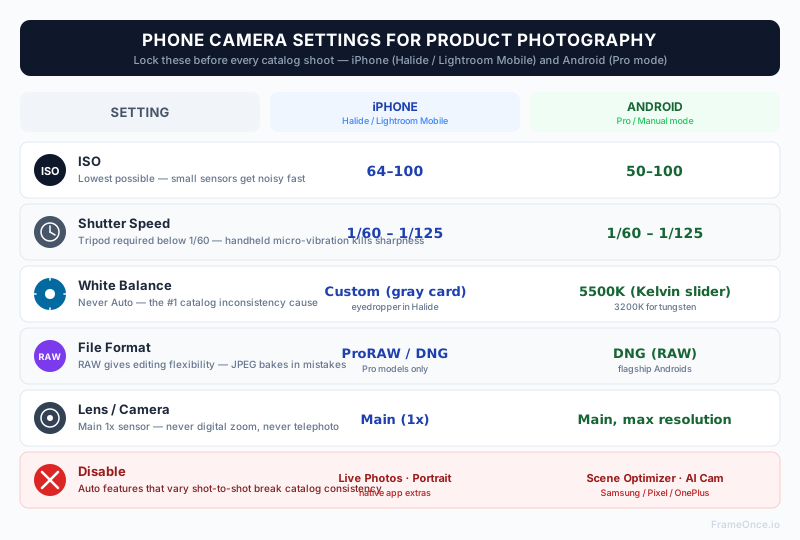
There's an important caveat upfront: Apple's native Camera app does not support full manual controls. There's no built-in way to manually set ISO, shutter speed, or exact white balance values, even on the iPhone 17 Pro running iOS 26. This is a long-standing gap that Apple hasn't addressed despite years of feedback from photographers.
For full manual control, you'll need a third-party camera app (covered below). The native Camera app still does most of what you need for product photography, but understanding its limits saves you from chasing settings that aren't there.
What the Native Camera App CAN Do
Lock focus and exposure. Tap and hold on your product in the viewfinder until you see "AE/AF Lock" appear at the top of the screen. This locks both focus and exposure to that specific point. Without this, the iPhone re-meters every time you slightly move the camera, causing tiny exposure variations between shots. Lock exposure on your gray card or color reference at the start of a session, then keep it locked through the entire shoot.
Adjust exposure manually after AE Lock. Once exposure is locked, swipe up or down on the viewfinder to bias exposure brighter or darker. This is the closest the native app gets to manual exposure control.
Use the main camera, not the telephoto. Every iPhone since the 12 Pro has multiple cameras. The main (1x) camera has the largest sensor and the widest aperture. The telephoto camera has a smaller sensor and a narrower aperture, which means worse low-light performance and less detail. For product photography, always use the 1x main camera. Get closer to the product physically rather than zooming with the telephoto lens.
Switch to ProRAW (Pro models only). iPhone 12 Pro and later support ProRAW format, which captures multi-frame computational data alongside RAW sensor data, giving you significant editing flexibility in post-production. Settings → Camera → Formats → enable ProRAW & Resolution Control, then choose between ProRAW (12MP) or ProRAW Max (48MP).
Turn off Live Photos. Live Photos consume storage and slow down your shooting workflow without adding any value for catalog photography. Turn them off in the Camera app's top toolbar (the concentric circles icon).
Third-Party Apps for Full Manual Control
If you want true manual control over ISO, shutter speed, and white balance on your iPhone, you need one of these apps:
Halide ($12 one-time, or subscription): The gold standard for iOS manual photography. Apple Design Award winner. Full manual ISO, shutter, focus, and white balance with focus peaking and a clean interface. Best choice for most serious phone photographers.
Lightroom Mobile (free, with Premium subscription for full features): Manual exposure, ISO, shutter, and white balance plus DNG raw capture. Integrates seamlessly with desktop Lightroom for editing. The free tier handles most product photography needs.
Modus ProCam ($9.99 one-time): Solid manual control with a focus on professional features. Lifetime purchase rather than subscription.
ProCamera (subscription): Comprehensive manual controls with extensive editing built in. Best for users who want one app to handle both capture and post-production.
For product photography specifically, Halide or Lightroom Mobile are the practical picks. Halide if you want the fastest manual workflow, Lightroom Mobile if you're already in the Adobe ecosystem.
Recommended Settings for Product Photography (Third-Party App)
Once you're in a manual app like Halide or Lightroom Mobile, set:
- ISO: 64-100 (lowest available for clean files)
- Shutter speed: Whatever your light requires, typically 1/30 to 1/125 on a tripod
- White balance: Custom, calibrated from a gray card (use the eyedropper on the gray patch)
- Focus: Manual, locked on your product center
- Format: RAW or DNG for full editing flexibility
Android Product Photography Settings
Android phones generally offer more manual control out of the box than iPhone. Most flagship Androids include a Pro or Manual mode in the native camera app.
Use Pro Mode (Most Flagship Androids)
Samsung, Google Pixel, OnePlus, and Xiaomi flagship phones all include a Pro mode in the camera app. Open it and set:
- ISO: 50-100 (lowest your phone supports)
- Shutter speed: 1/60 to 1/125 on a tripod
- Focus: Manual, set on the product center
- White balance: Use the Kelvin slider, set to 5500K for daylight LEDs or 3200K for tungsten
Save your settings as a custom mode if your phone supports it. This way you don't have to reconfigure every session.
Shoot in RAW (DNG)
Most flagship Androids let you shoot in DNG (RAW) format. RAW files are larger but give you full editing flexibility for white balance, exposure, and color grading after the shoot.
Settings → Camera → enable "RAW format" or "DNG."
Disable Scene Optimization / AI Camera
Samsung's "Scene Optimizer" and similar AI features on other phones make automatic adjustments that vary between shots. This is the enemy of catalog consistency. Turn it off.
Use the Main Sensor at Native Resolution
Many Android phones default to lower resolutions for "better processing." For product photography, switch to the highest resolution mode (often 50MP or 200MP on flagship Samsungs). This gives you maximum detail and lets you crop without losing quality.
DIY Lighting Setup for Smartphone Product Photography
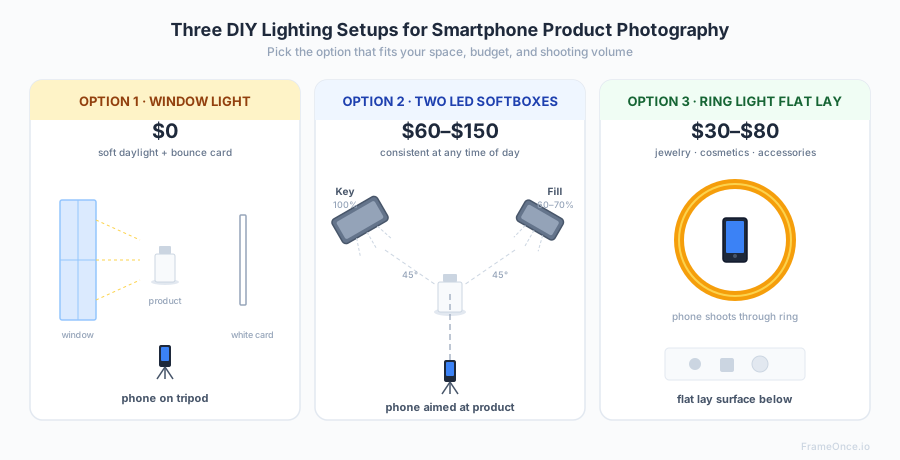
The biggest difference between amateur phone photos and professional ones isn't the camera. It's the lighting. Smartphone sensors handle controlled studio light beautifully but struggle in poor light. Get the lighting right and your phone photos will look indistinguishable from DSLR photos.
I've seen this play out hundreds of times across catalog reviews: sellers with $2,000 cameras and bad lighting produce worse results than sellers with phones and a single window. Lighting is the first thing to get right.
Option 1: Window Light Setup ($0)
The cheapest professional setup uses a north-facing window (in the northern hemisphere) or south-facing window (southern hemisphere) for soft, indirect daylight.
The setup:
- Place a small table parallel to the window, about 2-3 feet away
- Position your product on the table
- Place a white foam board or piece of white poster paper on the OPPOSITE side of the table from the window. This bounces light back into the shadow side of the product
- Mount your phone on a tripod facing the product, perpendicular to the window
- Shoot during midday hours (10am-3pm) for the most consistent light
Pros: Free, beautiful soft light, large light source produces flattering results.
Cons: Light changes throughout the day and across seasons, weather-dependent, can't shoot at night.
Option 2: Two LED Light Setup ($60-$150)
For consistency across all weather and times, two LED lights with softbox modifiers are the standard.
What to buy:
- 2x LED softbox kits (Neewer, Godox): $40-$80 each
- 2x light stands (usually included with kits)
- 1x phone tripod with cold shoe mount: $20-$40
The setup:
- Key light: Position one softbox at a 45-degree angle from your camera, slightly above the product, about 2 feet away
- Fill light: Position the second softbox on the opposite side at the same height, but at 60-70% of the key light's brightness (or further away)
- Camera position: Phone on tripod, lens at the same height as the product center
This is the same two-light foundation we cover in our product photography lighting guide, scaled for phone use.
Option 3: Ring Light Setup ($30-$80)
For flat lay product photography (jewelry, cosmetics, accessories), a single ring light shooting from above works well.
The setup:
- Mount the ring light overhead, pointing down at your shooting surface
- Position the phone tripod centered through the ring
- Lay your product flat on the surface below
Ring lights produce even, shadowless illumination that works for small flat products but doesn't add dimension to taller items.
For a complete equipment guide with specific recommendations at every price point, see our product photography equipment guide.
Backgrounds for Smartphone Product Photography
You don't need a professional studio backdrop. Several options work well for phone photography:
White poster board ($3-$5): Available at any office supply store. Two pieces taped together create a seamless backdrop. Works for products under 12 inches.
White seamless paper roll ($30-$60): Professional-grade, comes in larger widths (53" or 107"), produces zero seams or shadows.
Foam board ($10-$15): Rigid, doesn't crease, can be used as both backdrop and reflector.
Lightbox / light tent ($25-$60): All-in-one solution with translucent walls that diffuse light. Limits product size but makes lighting setup nearly automatic.
For Amazon listings specifically, you need pure white (RGB 255,255,255). See our Amazon product photography guide and white background photography guide for the technical workflow.
How to Photograph Products With Your Phone: Step-by-Step
1. Clean Your Lens
Phone lenses get smudged constantly. A fingerprint reduces sharpness more than any other single factor. Wipe with a microfiber cloth before every shoot.
2. Set Up Your Lighting Before Touching the Phone
Position your lights, place your product, and check that shadows fall where you want them. The lighting setup determines 90% of the final image quality.
3. Mount the Phone on a Tripod
Handheld phone shots have micro-vibrations that show as softness when zoomed in on a listing page. A $15 phone tripod eliminates this. Even a stack of books works in a pinch.
4. Configure Camera Settings
iPhone (native app): Lock AE/AF on a gray card or your product, turn off Live Photos, enable ProRAW if you have a Pro model.
iPhone (Halide or similar): Set ISO 64-100, shutter 1/60-1/125, custom white balance from gray card, RAW format on.
Android: Open Pro mode, set ISO to 50-100, shutter speed to 1/60-1/125, white balance to 5500K, RAW format on.
5. Frame Carefully
For Amazon main images, the product should fill 85% of the frame. For Etsy and Shopify, leave consistent margins (the same on every product). Use the rule of thirds grid (Settings → Camera → Grid on iPhone) to align consistently.
6. Take Multiple Shots Per Angle
Storage is cheap. Take 3-5 shots of every angle. Tiny movements between shots mean one will be sharper than the others. Pick the best one in editing.
7. Shoot All Required Angles
For a complete product listing:
- Front straight-on (the hero shot)
- Back view
- 45-degree angle showing dimension
- Top-down or detail shot
- Scale reference (with hand or common object)
- Lifestyle shot (if applicable)
8. Review on a Larger Screen Before Ending the Session
Phone screens can mask small problems (blurry corners, slightly off white balance, dust on the background). Before tearing down your setup, AirDrop or transfer 1-2 images to a tablet or laptop and check at full size. Reshoot if needed before you have to re-light everything.
Editing Smartphone Product Photos
Your phone can handle 80% of the editing you need without ever touching a computer.
Built-in Apps
iPhone Photos app: Adjust exposure, contrast, brightness, white balance, saturation. Sufficient for most product photo cleanup.
Google Photos: Similar built-in editing. The "Magic Eraser" feature removes small distractions from backgrounds.
Samsung Gallery: Includes object eraser, perspective correction, and filter adjustments.
Recommended Apps
Snapseed (free): Google's pro-level mobile editor. Curves, selective adjustments, healing brush, and white balance correction are all here. The best free editing app available.
Lightroom Mobile (free with optional subscription): Sync your phone edits with desktop Lightroom. Apply presets across multiple images for consistency. The free version covers everything most sellers need.
VSCO (free with optional subscription): Strong color grading presets. Good for lifestyle shots.
The Phone Editing Workflow
For each product image:
- Crop to the correct aspect ratio (1:1 for Amazon and Shopify, 4:5 for Pinterest)
- Adjust white balance if needed (compare to a reference image from the start of your session)
- Push background to white if shooting on white seamless (use Curves or Levels in Snapseed)
- Bump exposure by 1/3 stop for white products, decrease by 1/3 stop for black products
- Increase clarity/sharpness by 10-15% for catalog crispness
- Export at maximum quality (JPEG 90%+ or HEIF)
For full editing detail, including how to maintain consistency across an entire catalog, see our editing guide.
Common Smartphone Product Photography Mistakes
Using digital zoom. Phones use digital cropping above their native zoom range. This destroys quality. Move closer instead.
Ignoring focal distance. Phones have a minimum focus distance (usually 4-6 inches). Get too close and the camera can't focus. Back off slightly until focus locks crisply.
Shooting against direct sunlight. Hard shadows kill product photos. Diffuse or shoot in shade.
Forgetting to lock white balance. Auto white balance shifts between shots, making colors inconsistent across your catalog. This is the single most common consistency-killer I see in seller catalogs.
Using portrait mode for products. Portrait mode applies fake background blur that looks artificial on products and often makes the wrong edges blurry. Use standard photo mode and shoot at the right distance instead.
Vertical shots for catalog images. Most listing platforms use square or horizontal aspect ratios. Shoot square or horizontal from the start to avoid awkward cropping.
Skipping the gray card. Without a color reference, your white balance is guesswork. A $10-15 gray card pays for itself in the first session. Mid-range options like the Datacolor SpyderCheckr 24 ($60-70) or X-Rite ColorChecker Passport ($130-150) add full color profiling on top of white balance correction.
When to Upgrade From Your Phone
Smartphones handle most ecommerce product photography beautifully. But there are scenarios where a dedicated camera produces meaningfully better results:
You're photographing 100+ SKUs per month. Phone workflows have small friction (transferring files, limited burst rates, smaller sensors) that add up at scale. A mirrorless camera with a 50mm macro lens cuts session time significantly.
You shoot a lot of jewelry or small detail products. Macro lenses on dedicated cameras outperform phone macro modes for serious jewelry work. Our jewelry photography guide covers when this matters.
You need shallow depth of field. Real f/2.8 or f/4 on a full-frame sensor produces background blur that phones can only approximate with computational portrait modes.
Your competitors are all using DSLRs. In categories where every Etsy seller has DSLR-quality images, phone photos can read as less premium even when technically equivalent.
If your business is profitable and your photo workload exceeds about 50 SKUs per month, consider a budget mirrorless camera ($600-$900 used). Below that volume, your phone is more than enough.
What to Do Next
Smartphone product photography isn't a compromise. It's a legitimate professional approach that thousands of successful Etsy and Shopify sellers rely on exclusively. The gap between phone and dedicated camera shrinks every year, while the workflow advantages of phone photography keep growing.
Your next step depends on where you are:
If you don't have lighting yet, set up the window light approach this week. It's free and produces results good enough to launch with.
If you have lighting but inconsistent results, lock your phone settings (manual ISO, white balance, focus via Halide or Pro mode) and use a tripod for every shot. Settings consistency fixes 90% of catalog inconsistency problems.
If you're scaling beyond 50 products and feeling the limits of phone workflows, our product photography setup guide and equipment guide cover the upgrade path.
And when your catalog grows beyond what manual editing can keep consistent, that's where FrameOnce comes in. Worth saying plainly given how much AI-generated product imagery is out there: FrameOnce enhances the smartphone photos you actually took. It does not generate fake products, fake hands, or fabricated scenes — your buyer is still seeing the real item that will arrive in their box (see our Real Photos policy).
FrameOnce Team
FrameOnce Team
Related Articles
Catalog Photography: How to Keep 100+ Product Photos Looking Like One Cohesive Brand
Keep 100+ product photos looking cohesive: workflow, lighting standards, color management, and tools for ecommerce sellers at scale.
Amazon Product Photography Requirements: Complete 2026 Compliance Guide
Every Amazon product image rule in one place: white background specs, dimensions, file formats, and 2026 category-specific requirements.
Apparel Product Photography: How Fashion Brands Stay Consistent at Scale
How fashion brands photograph apparel at scale: lighting, shooting workflows, color accuracy, and keeping 500+ SKUs visually cohesive.
Stay Updated
Honest product photography tips delivered to your inbox. FrameOnce enhances the photos you take, real photos, never generated.