White Background Product Photography: The Complete Guide for E-Commerce
How to shoot white background product photos for Amazon, Etsy, and Shopify: setup, lighting, and editing for a perfectly consistent product catalog.
White background product photography is the standard for ecommerce — and for good reason. A pure white background eliminates visual noise, focuses attention on the product, and meets the image requirements for every major selling platform. Amazon requires it. Most Shopify themes look better with it. Etsy's top-performing listings use it.
Getting it right, however, is harder than it looks. A background that photographs as off-white or grey will get your Amazon listings suppressed. Inconsistent white tones across your catalog make your store look like products came from different sources. And background removal in post — while a legitimate workflow — produces uneven results unless your original lighting setup is controlled.
This guide covers the full white background product photography workflow: setup, lighting, camera settings, in-camera techniques for a clean white background, and post-processing. For the ecommerce photography foundation that white background work builds on, start with our complete product photography guide.
Why White Background Photography Is the Ecommerce Standard
White background product photography isn't just a convention — it's a platform requirement backed by conversion data.
Platform requirements:
- Amazon: Main product images must have a pure white background (RGB 255,255,255). Non-compliant images are suppressed from search results. This is strictly enforced.
- Google Shopping: White or light backgrounds preferred for optimal product display across search and Shopping tabs.
- Shopify, Etsy, WooCommerce: No formal requirement, but catalogs with consistent white background images consistently outperform mixed-background catalogs in conversion rate.
Conversion data: Product listings with clean white backgrounds eliminate visual distractions that cause shoppers to focus on something other than the product. On a collection grid, products with consistent white backgrounds signal quality and professional curation — before a shopper clicks through.
Practical advantage: White background images are easier to batch-process consistently, easier to reuse across platforms, and easier to composite into lifestyle or marketing contexts.
The Two Approaches: In-Camera vs. Background Removal in Post
You can achieve a white background product photo in two ways. Both are legitimate — but they produce different results and suit different workflows.
Approach 1: Pure White In-Camera
You light the product and background so the background photographs as pure white during the shoot. The final image requires minimal or no background correction in post.
Advantages:
- Fastest per-image workflow once setup is established
- Most accurate colors (no masking artifacts)
- Consistent results across hundreds of images
- Meets Amazon's exact white requirement reliably
Requirements: A dedicated background light or sufficient distance between the product and background.
Approach 2: Background Removal in Post
You shoot on any clean surface (often grey, light blue, or white), then remove the background in post-processing using selection tools or AI-powered background removal.
Advantages:
- More flexibility during the shoot
- Works in environments where a background light isn't practical
Disadvantages:
- Adds 2–5 minutes per image in post
- Masking quality varies — hair-like textures, transparent products, and fine detail edges are difficult to mask accurately
- Can produce visible artifacts on product edges, especially with semi-transparent products
- Color accuracy can shift when the background selection is made in a RAW editor
Recommendation: For volume catalog work with 20+ products, the in-camera approach is almost always faster overall and produces more consistent results.
Equipment for White Background Product Photography
Camera
Any mirrorless or DSLR camera with manual exposure control works for white background photography. The key is being able to lock ISO, aperture, shutter speed, and white balance independently.
For product recommendations by budget, see our product photography equipment guide.
Lighting
White background photography specifically requires lighting that can make the background appear pure white (RGB 255,255,255 or very close) without overexposing the product.
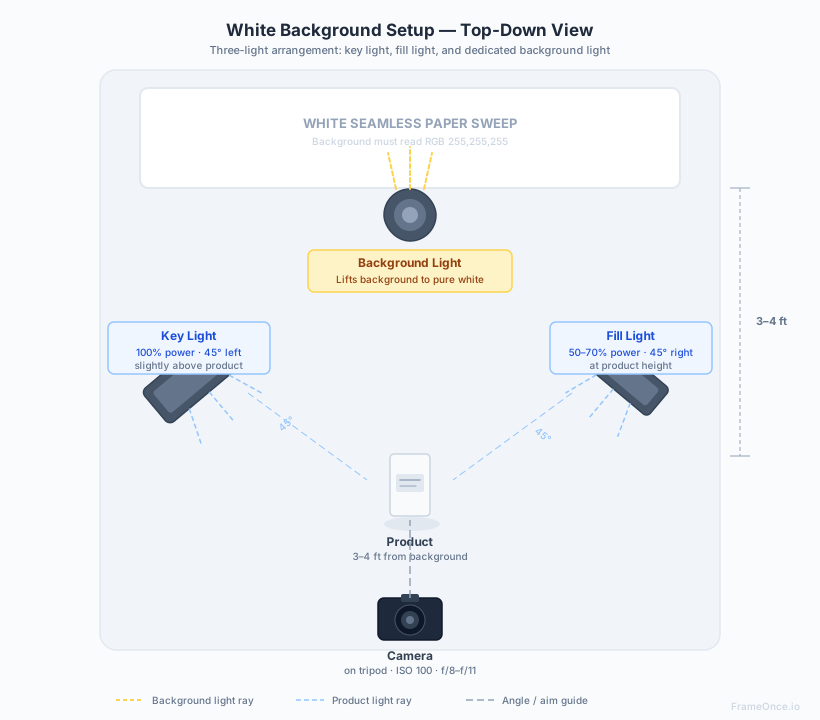
The standard setup: Three lights.
- Key light: Primary product lighting, positioned at 45 degrees left, slightly above the product
- Fill light: Product fill, positioned at 45 degrees right, at 50–70% of key light brightness
- Background light: Aimed directly at the white background, set bright enough to make the background appear pure white
For a full lighting setup guide including camera settings and light ratios, see our product photography lighting guide.
Backgrounds
White seamless paper roll: The professional standard. Available in 107-inch width from Savage Universal and Backdrop Express. A roll lasts hundreds of shoots — cut the dirty section off and roll out fresh paper. Cost: $30–$50 for a roll.
White foam board: Inexpensive, available at any dollar store. Curve it up behind the product for a seamless background with no visible corner. Replace when the surface becomes marked. Cost: $2 per sheet.
White vinyl/PVC backdrop: Reusable and cleanable. Slightly less neutral than paper — some vinyl backdrops have a warm or cool cast. Buy from a photography supplier and test before using for catalog work.
Lightbox: A collapsible light tent ($50–$150) provides a white background automatically with built-in diffusion. Ideal for small products (under 12 inches). The enclosed space means the background is inherently white without a dedicated background light.
Step-by-Step: In-Camera White Background Setup
Step 1: Position the background
Place your white background (paper sweep, foam board, or backdrop) at least 3–4 feet behind your product shooting area. This distance ensures the product's key and fill lights don't reach the background — which would create uneven lighting and make the background appear darker on the edges.
Curve the background material smoothly from the horizontal surface up the wall without a sharp corner. This creates the "seamless" infinity background effect that makes backgrounds look like they extend infinitely.
Step 2: Set up the product lighting
Position your key light at 45 degrees to the left of the product, slightly above product height. Position your fill light at 45 degrees to the right, at product height, at 50–70% the brightness of the key light.
At this stage, with no background light, your background will appear grey in the image. That's expected.
Step 3: Add the background light
Position a third light behind the product, aimed at the background. Starting at a medium power setting, take a test shot and check the background tone:
- If the background appears grey: increase background light brightness
- If the background is blowing out the product edges: either reduce background light brightness or increase the distance between the product and background
The goal: the background appears pure white in the image, while the product retains accurate color and shadow detail.
Step 4: Set camera to manual mode
Lock your settings:
- ISO: 100
- Aperture: f/8–f/11 for most products (f/11–f/16 for macro/jewelry)
- Shutter speed: adjust until the product is correctly exposed at ISO 100 and your chosen aperture
- White balance: fixed Kelvin value (5500K for daylight LEDs) or custom grey card
Step 5: Check with a histogram
The histogram is your most reliable tool for verifying white background compliance. A correctly exposed white background product image should show:
- Product tones: spread across the middle of the histogram, with no blown highlights (if the product is not white itself)
- Background: a spike at the far right edge of the histogram — this represents the pure white background
If the background spike is not at the far right, the background is not pure white in the image. Increase background light brightness.
Step 6: Shoot a test product and verify
Before shooting your full catalog, photograph a test product and check the result both on-screen and at 100% crop. Verify:
- Background reads as pure white (not grey, cream, or warm white)
- Product colors are accurate relative to the actual product
- No color spill from the background onto the product edges
- No blown highlights on the product itself
Camera Settings for White Background Product Photography
| Setting | Recommended | Why |
|---|---|---|
| ISO | 100 | Minimum noise for fine product detail |
| Aperture | f/8–f/11 | Full sharpness throughout the product |
| Shutter Speed | 1/60–1/8 sec (on tripod) | Whatever correctly exposes at ISO 100 + chosen aperture |
| White Balance | Fixed 5500K or custom grey card | Prevents color shift between shots |
| Format | RAW | Maximum latitude for post adjustment |
| Focus | Manual or single AF, locked | Prevents focus shift between shots |
White Background Photography for Specific Product Types
Apparel and Clothing
White background clothing images require careful attention to separation between the product and background. White or light-colored garments on a white background can lose their edges if not properly lit.
Technique: Add a subtle rim light positioned behind the garment, aimed at the edges, to create separation from the background. For dark-colored garments, standard three-light setup works without additional separation lighting.
For detailed clothing photography techniques, see our clothing photography guide. If your catalog sells on Amazon, the Amazon product photography requirements guide covers the strict pure-white compliance rules that apply to apparel main images.
Jewelry
Amazon requires white background main images for jewelry, but jewelry is one of the hardest products to photograph on white background correctly. Reflective metal surfaces can pick up the color of the background or the lights, and white backgrounds can make silver appear grey.
Technique: Use a lightbox for the enclosed diffusion. For silver and platinum, ensure the background light is not warmer than the product lighting — warm white backgrounds make silver look grey. Use a custom white balance set under your actual lights to ensure accurate metal color rendering.
Electronics and Products with Screens
Products with screens require special handling because a lit screen overexposes against a white background, while an unlit screen looks like a black rectangle.
Standard approach: Shoot the product with the screen off (or in the lowest brightness state) and composite the screen content in post using the actual UI or product screenshot.
Glass and Transparent Products
Transparent products on white backgrounds can appear to disappear — the product edges are hard to distinguish from the background.
Technique: Use edge lighting or backlighting to make the glass edges visible. Position a third light behind the product, aimed upward, to create a gradient that highlights the glass edges. Alternatively, shoot on a light grey background rather than pure white — this gives the transparent edges something to contrast against, then adjust in post.
Post-Processing White Background Images
Even with an excellent in-camera setup, post-processing is part of the white background workflow. For the broader catalog editing system that pushes backgrounds to pure white at scale, see our editing guide. Achieving a perfectly pure white background on a single product is one thing; achieving it consistently across hundreds of products taken under different conditions is a separate problem entirely — see our catalog consistency guide for the systematic approach to that scale problem.
RAW Processing
- White balance first: Adjust until the white background and product colors match the actual product
- Exposure check: The background should be at or near 100% brightness (255, 255, 255 in RGB) — use the histogram or Color Picker to verify
- Highlight recovery: If product highlights are blown, recover them using the Highlights slider before making other adjustments
- Selective sharpening: Apply sharpening to the product only, not the background
Background Cleanup
Even with correct exposure, backgrounds often have subtle grey patches, uneven lighting, or shadow gradients from the product. In Lightroom: use the Radial Filter or Graduated Filter to selectively increase exposure on grey background areas. In Photoshop: use a Curves adjustment layer with a white selection mask to lift the background to pure white.
Batch Processing for Catalog Consistency
If you've shot correctly in camera, batch processing is straightforward: apply the same Lightroom preset (or Camera Raw settings) to all images from the same session, then check and adjust individually for any images where the product tone differs significantly.
For sellers with large catalogs, the key to consistent batch processing is a documented preset that reflects your lighting standard. Every session starts with a test shot that you match to your reference standard before batch-applying settings.
How to Keep Your White Background Consistent Across a Large Catalog
Getting one correct white background image is the easy part. Getting product #200 to look like it was shot in the same session as product #1 — same white tone, same shadow density, same crop — is the real challenge.
Common sources of white background inconsistency:
- Different sessions under slightly different ambient light
- Background paper replaced with a new roll (subtly different brightness)
- Background light bulb replaced (different color temperature)
- Different editors applying different white balance judgments
The traditional fix is meticulous documentation and strict adherence to a style guide. This works but requires ongoing discipline and breaks down when multiple people work on the catalog.
FrameOnce for White Background Consistency
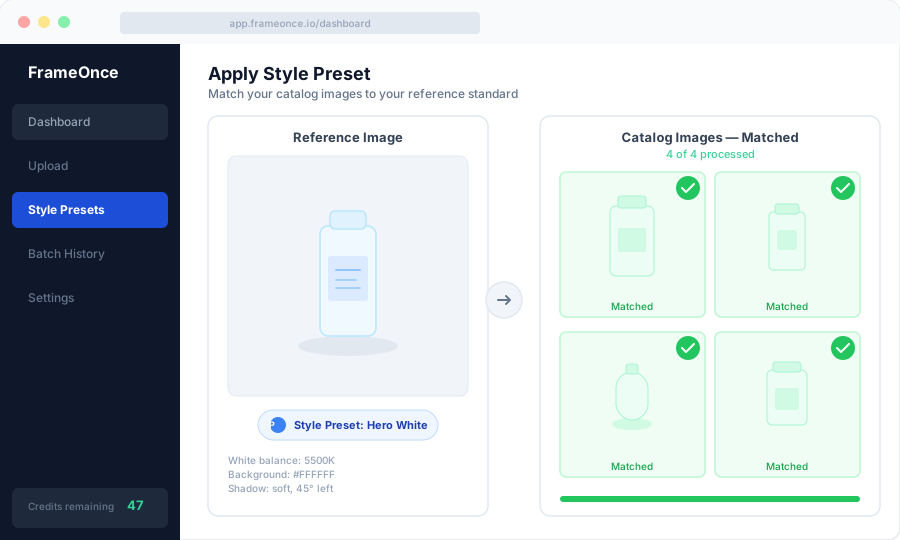
FrameOnce solves this at the catalog level. You designate a reference image — one where the white background, product color, shadow density, and crop are exactly right — as a Style Preset. Every subsequent image you upload gets automatically matched to that reference.
The background tone, the color calibration, the overall visual standard — all applied automatically. Product #200 matches product #1, regardless of when it was shot or who edited it.
To draw the line clearly: FrameOnce standardizes the real photos you shot. It does not generate fake product imagery, fabricate replacement backgrounds in front of products that were never photographed there, or replace your inventory with synthetic stand-ins (see our Real Photos policy).
FrameOnce's free tools are live now. Run a free shop critique to see exactly where your catalog drifts, no signup needed. The full paid catalog workflow (Style Presets, batch processing, Etsy/Shopify integration) is in private testing and launches summer 2026; join the waitlist for double credits when paid plans are ready.
Frequently Asked Questions
Does Amazon require a pure white background?
Yes. Amazon requires that main product images have a pure white background (RGB 255,255,255). The product must fill at least 85% of the image frame. Non-compliant images are suppressed from search results and buy box eligibility.
How do I know if my background is pure white?
Use the Color Picker tool in Lightroom, Photoshop, or any photo editor to sample the background color. It should read as 255/255/255 (or very close — 252/252/252 is typically acceptable). Your histogram will also show a spike at the far right if the background is pure white.
Can I shoot on a grey background and turn it white in post?
Yes, using background removal tools or exposure adjustment. However, this adds processing time, can produce masking artifacts on fine detail edges, and is harder to do consistently at volume than getting it right in camera.
Why does my white background look grey in photos?
Either your background isn't receiving enough light, the background is too close to the product (shadows from the product fall on it), or your camera's exposure is set too low overall. Add a dedicated background light or increase background light brightness.
How do I photograph white products on a white background?
This is one of the trickiest challenges in white background photography. The solution is to light the product from the sides at 45 degrees (which creates visible shadows that define the edges) and use a background light to keep the background pure white. The shadows on the white product make it visible against the white background. Post-processing can then refine the background without affecting the product's edge detail.
What's the best file format to deliver white background images?
JPEG for most ecommerce platforms (Shopify, Amazon, Etsy). If you need a transparent background for overlays or mockups, PNG with alpha channel. JPEG is smaller, loads faster, and is preferred by all major platforms.
Summary
White background product photography is a learnable, reproducible workflow. The key elements: three-light setup (key, fill, background light), ISO 100, f/8–f/11, fixed white balance, and a histogram check to verify that the background reads as pure white before shooting the full catalog.
The in-camera approach — getting the white background correct during the shoot — is faster and more consistent at volume than background removal in post. Once your setup is documented and your lighting is locked, white background images become a repeatable production process rather than a creative challenge.
Ready to keep your white backgrounds consistent across your entire catalog? Run a free shop critique to see exactly where your photos drift today — no signup needed. Or join the waitlist for double credits when the paid catalog workflow launches summer 2026.
FrameOnce Team
FrameOnce Team
Related Articles
Amazon Product Photography Requirements: Complete 2026 Compliance Guide
Every Amazon product image rule in one place: white background specs, dimensions, file formats, and 2026 category-specific requirements.
Product Photography Equipment: What You Actually Need (and What You Don't)
The complete product photography equipment list by budget tier: from $50 phone setups to full studio rigs, with what's worth buying and what to skip.
Product Photography Lighting: A Complete Guide to Consistent Results
Product photography lighting guide: natural vs. artificial setups, camera settings, softbox positions, and consistency techniques for ecommerce catalogs.
Stay Updated
Honest product photography tips delivered to your inbox. FrameOnce enhances the photos you take, real photos, never generated.