How to Edit Product Photos for Consistency Across Your Entire Catalog
Edit product photos so your catalog looks cohesive: white balance, exposure, color matching, batch editing, and pro consistency techniques.
The difference between a catalog that looks professional and one that looks amateur often isn't the photography. It's the editing. Two stores can shoot products under similar lighting, but if one applies disciplined editing for consistency and the other doesn't, the difference shows up immediately to anyone scrolling through.
This guide walks through the editing decisions that matter for ecommerce product photos: not creative color grading, not fancy retouching, but the specific adjustments that make 200 product images look like they belong in the same catalog. The techniques below apply to Lightroom, Photoshop, free alternatives like GIMP and Affinity Photo, and automated catalog-enhancement tools like FrameOnce. The principles are universal even when the software changes.
Need to fix the photography first? Editing can rescue marginal photos, but it can't fix bad source material. Start with our product photography setup guide for workspace fundamentals, then come back here for the editing workflow.
What "Consistent" Editing Actually Means
Consistency in product photo editing isn't a single setting or a magic preset. It's the absence of noticeable differences across hundreds of small variables, every one of which has to be controlled individually.
White balance consistency. Whites should be the same temperature across every product. Off-white or warm-tinted white in some images and cool-tinted white in others creates the visual chaos customers feel without articulating.
Exposure consistency. A black t-shirt and a white t-shirt should both be exposed correctly for their respective tones, but the overall brightness of the catalog should feel even. Some images noticeably brighter or darker than the rest break the catalog rhythm.
Background consistency. Pure white backgrounds should be exactly RGB 255,255,255 across every image. Slight gray patches in some and clean white in others is the most common consistency failure on Amazon and Etsy listings.
Color accuracy consistency. A navy blue garment photographed in January should be the same navy in March. Customer color complaints almost always trace back to inconsistent color rendering between sessions.
Sharpness and clarity consistency. Each image should have the same level of micro-contrast and detail enhancement. Some images crisp and others soft creates the impression that some products are more important than others.
Crop and aspect ratio consistency. Every image in a category should have the same ratio, the same margins, the same vertical and horizontal alignment.
The combined effect of these dimensions is what makes a catalog feel cohesive. The work is in maintaining all of them simultaneously across hundreds of images.
Building an Editing Workflow That Scales
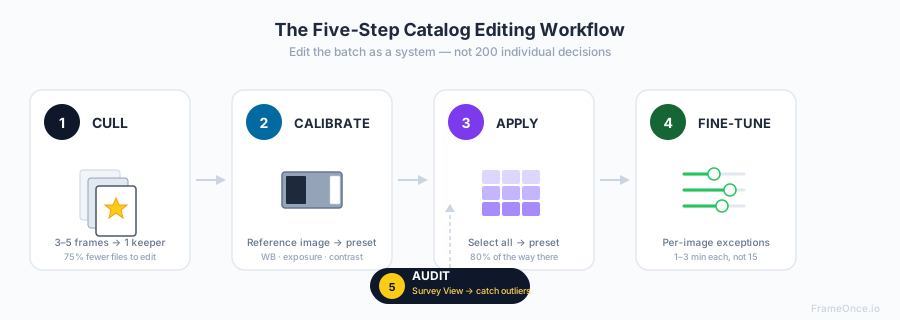
The single biggest mistake in product photo editing isn't a technical one. It's editing image-by-image, fully finishing each photo before moving to the next. This approach feels productive but produces inconsistency, because every image is being individually re-decided rather than processed against a fixed standard.
I've watched sellers spend three hours editing 30 photos perfectly, then struggle to articulate why their catalog still looks "off." The answer is almost always the editing approach, not the editing skill. Every image was technically well-edited but each one was edited as its own project, with no shared reference.
The right approach: process all images in a batch through the same standardized adjustments, then handle individual exceptions as a final pass.
Step 1: Cull Before You Edit
For every product, you've taken 3-5 frames per angle. Editing all of them is a waste. Start by selecting the best frame from each angle:
- Sharpness: pixel-peep at 100% zoom on the most important detail
- Composition: best aligned, best framed, fewest distractions
- Lighting: most even, fewest unwanted shadows or highlights
Mark the keepers. Hide or delete the rest. You're now editing 25-30% as many files as you started with.
Step 2: Calibrate to Your Reference Image
Open the reference image from your shoot session (the color checker shot, or your best previously-edited product image from the same setup). This is your visual target.
Adjust the reference image to your exact standard:
- White balance: set custom Kelvin temperature based on the gray patch
- Exposure: brightest point at correct exposure (around 240-250 for white backgrounds, lower for product highlights)
- Contrast: slight S-curve in tone curve for catalog snap
- Saturation: typically -5 to +10, depending on your brand aesthetic
- Sharpness: 30-50 amount, 1.0-1.5 radius, masking 30-70 to avoid sharpening noise
Save these settings as a preset (Lightroom: Develop → Presets → Create Preset). Name it for the session and lighting setup (e.g., "Spring 2026 White BG Two-Light").
Step 3: Apply the Preset to the Entire Batch
Select all images from the session. Apply the saved preset to every image at once. This is your starting baseline for the entire batch.
In Lightroom: select all (Ctrl+A or Cmd+A) → click your preset → all selected images update simultaneously.
This single step gets you 80% of the way to a consistent batch.
Step 4: Fine-Tune Per Image
Now go through each image and adjust only what needs adjustment:
Exposure tweaks for products that are notably lighter or darker than your reference (white t-shirt vs. black jacket).
White balance fine-tuning if certain products show color cast (warm wood tones picking up red, cool metals picking up blue).
Crop and straighten to match your standard frame and aspect ratio.
Spot removal for dust, lint, fingerprints, or background imperfections.
Background cleanup if shooting on white seamless and the background didn't blow out completely (push corners and edges to RGB 255,255,255 using Curves or Levels).
Each image should take 1-3 minutes after the preset is applied. Compare to 5-15 minutes per image without a preset workflow.
Step 5: Final Consistency Audit
Before exporting, view all images side by side at the same scale. In Lightroom: Survey View (N key). In Photoshop: Multiple Image Layout.
Look for:
- One image obviously brighter or darker than the rest
- One image with a different color cast
- One image with different background tone
- One image cropped or aligned differently
Re-edit any outliers until they match. This audit step catches 90% of the inconsistencies that would otherwise ship to your customers.
White Balance: The Most Important Adjustment
If you only get one editing decision right, make it white balance. Every other adjustment can be acceptable with reasonable defaults. White balance has to be locked precisely because it affects every color in the image, and small drifts compound visibly across a catalog.
Setting White Balance From a Gray Card
If you shot a gray card at the start of your session (highly recommended), use it as your white balance reference:
Lightroom: Select the gray card image. White Balance Selector tool (eyedropper). Click on the gray patch. The image's white balance now reads as neutral gray. Sync this white balance setting to all images from the session.
Photoshop: Image → Adjustments → Curves. Click the gray point eyedropper. Click on the gray patch. White balance is now neutralized.
Without a gray card: Find a neutral white element in the scene (the background, a piece of white paper, a white product). Use it as your reference. Less precise than a true gray card but workable.
Manual Kelvin Temperature Setting
For sessions where you've shot under known lighting, set white balance directly to the matching Kelvin temperature:
- Daylight LEDs (most common): 5500K
- Tungsten / incandescent bulbs: 3200K
- Mixed lighting: 4500K (compromise, requires more post-correction)
- Open shade outdoors: 7500K
- Direct sunlight: 5200K
Always set this as a fixed value, never as "Auto." Auto white balance varies between shots and is the single biggest source of catalog inconsistency.
Tint Adjustment
The Tint slider controls green/magenta cast. Most LED lights have a slight green cast that needs correction. Add +5 to +15 magenta tint to neutralize.
For a complete white balance reference across your shoots, use a fixed value documented in your session notes. The exact temperature matters less than using the same value every time.
Exposure for Different Product Tones
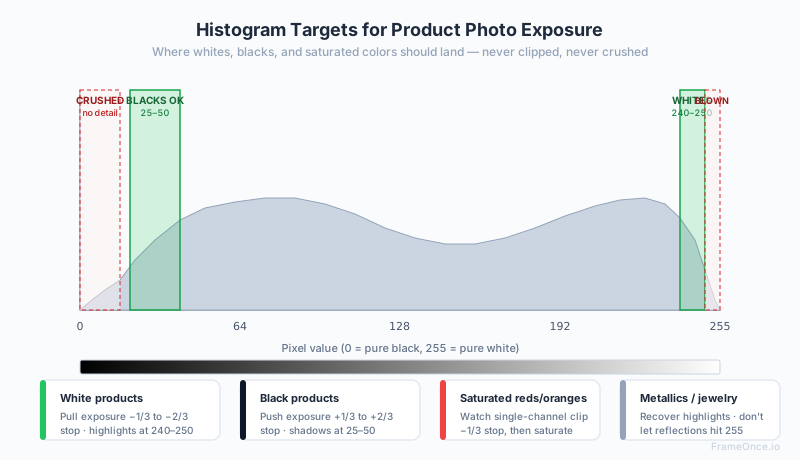
Different colored products require exposure compensation to render accurately. Without adjustment, a black product photographed at the same settings as a white product will look gray, and a white product at the same settings will look dingy.
White or light-colored products: Reduce exposure by -1/3 to -2/3 stop compared to your reference. The whites should be bright but retain detail (around 240-250 on the histogram, not clipped at 255).
Black or dark-colored products: Increase exposure by +1/3 to +2/3 stop. The fabric or material should show texture and dimension, not flatten to pure black (around 25-50 on the histogram, not crushed to 0).
Saturated colors (reds, oranges, deep purples): Watch for one channel clipping before others. If the red channel hits 255 while green and blue are at 180, your reds will look unnaturally oversaturated. Pull exposure down 1/3 stop and use the Saturation slider for color emphasis instead.
Metallic products (jewelry, watches, hardware): Highlights need to be bright but not blown out. Use the highlight slider to recover any clipped reflections. Pure white reflections (255) on metal look like blown-out exposure rather than reflective surface.
For specific techniques on rendering jewelry and metal accurately, see our jewelry photography guide.
Pushing Backgrounds to Pure White
For Amazon, Etsy main images, and any context where a clean white background is required, the background needs to be pure RGB 255,255,255. Even if your in-camera lighting was good, the background in the final file is rarely truly pure white without intentional editing.
The Curves Approach
In Lightroom or Photoshop:
- Open the Curves panel
- Select the white point eyedropper
- Click on a corner of the background that should be white
- The curve adjusts to push that point to 255,255,255
- Verify with the eyedropper tool: the background should read 255 across all corners
If the product is too close to the background and the white-point click affects product detail, mask the product before applying the curve adjustment.
The Levels Approach
Faster but less precise:
- Open Levels (Ctrl+L or Cmd+L in Photoshop)
- Drag the right (white) input slider until the histogram's right edge starts at the slider position
- Background pushes to white; verify all corners read 255
Watch for over-correction: if the slider is too far left, you'll lose detail in the lighter edges of the product itself.
The Selective Approach (For Difficult Backgrounds)
When the background isn't fully separating from the product, more selective work is needed:
Lightroom: Use a Brush or Linear Gradient with exposure +1.5 to +2 stops, selectively brushed over background areas.
Photoshop: Mask out the product, then apply Levels or Curves to the background only. This protects product detail while pushing only the background to white.
For a complete walkthrough of pure white background workflows including the in-camera setup, see our white background photography guide.
Color Accuracy: The Customer-Facing Stake
Color accuracy is where editing succeeds or fails commercially. Customers who receive a "dusty rose" shirt that looks pink in your photos will return it and write reviews about misleading photography. Editing for accurate color isn't perfectionism. It's risk management.
Calibrate Your Monitor
Before editing for color accuracy, your monitor itself must be calibrated. An uncalibrated monitor can show colors 5-15% off from accurate, which means your "correct" edits look wrong on every customer's screen.
Basic calibration tools cost $150-$250 (Datacolor SpyderX or X-Rite i1Display Studio). Calibrate monthly for stable accuracy.
Use a Color Checker
A color checker (X-Rite ColorChecker Passport at $90, or Datacolor SpyderCheckr at $60) photographed at the start of every session creates a custom color profile for your specific lighting. Apply this profile to all images from the session.
The workflow:
- Photograph the color checker at the start of the session
- In Lightroom, use the X-Rite plugin or Datacolor's plugin to generate a custom camera profile
- Apply this profile to every image from the session via the Profile dropdown in Lightroom
This produces measurably more accurate colors than any manual white balance adjustment.
Brand Color References
If your products include items with brand-specific colors (a custom-dyed fabric, a signature accent color, packaging in your brand palette), keep reference samples next to your editing station. Eyeball comparisons between the reference and the on-screen color reveal drift that numerical accuracy doesn't catch.
Batch Editing for Catalog Consistency
The principles above are necessary but not sufficient for a 200-product catalog. Manual application to every image is too slow and too error-prone at scale. Batch editing tools and workflows do the heavy lifting.
Lightroom Sync Settings
Edit one image as your reference. Select all other images from the session. Right-click → Develop Settings → Sync. Choose which adjustments to copy (typically: white balance, exposure, color correction, sharpening — but NOT crop or spot removal).
Every image now has the same baseline adjustments. Fine-tune individual exceptions.
Photoshop Actions and Batch Processing
For repetitive operations (background-to-white pushes, sharpening, export), record an Action in Photoshop, then apply it to a folder of images via File → Automate → Batch.
Actions handle pixel-level operations more flexibly than Lightroom presets. Useful for advanced compositing or retouching.
Capture One Sessions
For studio environments, Capture One's Sessions feature treats every shoot as a discrete unit with its own color profile and edit history. Higher learning curve than Lightroom but better for high-volume catalog work.
Automated Consistency Tools (Enhancement, Not Generation)
For catalogs above 100 products, automated consistency tools change the economics of consistent editing entirely. Instead of building a preset and manually fine-tuning each image, you define your visual standard once from a single perfect reference image, and the tool applies that standard programmatically across every image, accounting for the variations in lighting and color that creep in across sessions. Note the distinction: these tools refine the real photos you took, they do not generate fake product imagery from prompts.
FrameOnce is built for this workflow. You perfect one product photo (lighting, color, background, sharpness all exactly right), save it as a Style Preset, and apply that standard across your entire batch. FrameOnce analyzes each of your real photos individually and makes the specific adjustments needed to match your preset, handling the per-image variations that traditional batch tools cannot. We never generate stand-in products, models, or fabricated scenes — every output starts from a photograph of real inventory (read our policy).
The practical effect: a 200-image catalog edit that would take 10 hours with manual Lightroom batching becomes a 30-minute review pass.
For a complete comparison of editing approaches at different catalog sizes, see our catalog photography guide.
Common Product Photo Editing Mistakes
Editing image-by-image without a reference. Without a fixed standard, every image is individually re-decided, guaranteeing drift. Always edit against a reference.
Over-saturating colors. Saturated colors look great on individual images but make catalogs look gaudy. Most catalog work benefits from -5 to +5 saturation, not +20.
Over-sharpening. Over-sharpened images show halos and noise emphasis. Catalog work typically uses Amount 30-50, Radius 1.0-1.5, with Masking 30-70 to avoid sharpening flat areas.
Crushed blacks or blown whites. Pushing the histogram to either extreme loses detail customers need to evaluate the product. Whites should be 240-250, blacks should be 25-50.
Inconsistent crop ratios. Mixing 1:1 and 4:5 crops within a catalog creates visual chaos. Pick one ratio per category and apply it everywhere.
Skipping the gray card. Without a color reference, white balance is guesswork. The $10 gray card pays for itself in the first session.
Heavy retouching that removes product authenticity. Removing real product features (texture, slight asymmetries, natural variations) creates expectations that physical products can't meet. Customers receive items that "don't match the photos" even when the products are perfect.
Editing on an uncalibrated monitor. Your edits look right on your screen and wrong everywhere else. Calibration is foundational, not optional.
What to Do Next
Editing for consistency is a discipline, not a creative skill. The single biggest improvement most ecommerce sellers can make to their catalog isn't better individual photo edits. It's a consistent editing workflow applied systematically across every image.
Start by calibrating your monitor if you haven't. Without calibration, every other editing decision is unreliable.
Next, build a preset for your most common shooting scenario (white background two-light setup, for most sellers). Apply it to your last 20 product images. Compare the results to your existing catalog. The difference will be obvious.
If you're scaling beyond what manual batch editing can handle consistently, that's where FrameOnce is designed to help.
For the broader photography fundamentals that make editing easier, our product photography setup guide, lighting guide, and equipment guide cover the in-camera work. Better source files mean less editing, more consistency, and faster catalog turnover.
FrameOnce Team
FrameOnce Team
Related Articles
Catalog Photography: How to Keep 100+ Product Photos Looking Like One Cohesive Brand
Keep 100+ product photos looking cohesive: workflow, lighting standards, color management, and tools for ecommerce sellers at scale.
Smartphone Product Photography: How to Get Professional Results With Your Phone
Pro product photos from your phone: iPhone and Android settings, DIY lighting, backgrounds, and editing for Etsy and Shopify sellers.
Amazon Product Photography Requirements: Complete 2026 Compliance Guide
Every Amazon product image rule in one place: white background specs, dimensions, file formats, and 2026 category-specific requirements.
Stay Updated
Honest product photography tips delivered to your inbox. FrameOnce enhances the photos you take, real photos, never generated.