Shopify Product Image Size: Complete 2026 Guide
Every Shopify image size in one place: product photos, collections, banners, logos. 2026 specs direct from Shopify, plus consistency tips.
You upload a product photo. It looks great on your desktop but blurry on mobile. Or the grid looks uneven because one image is slightly taller than another. Or your banner is cropped in a weird place you didn't expect.
These are Shopify image size problems — and they're the kind of thing that quietly kills conversion rates without you knowing why.
This guide covers every Shopify image size you'll need, sourced directly from Shopify's own documentation, so you can get your store looking sharp on every device and page type.
The Most Important Shopify Image Size: Product Photos
Product images are where most sellers focus, and for good reason — they appear on your product pages, collection grids, and anywhere your product is shown in your store.
Shopify product image specifications (2026):
| Spec | Value |
|---|---|
| Maximum dimensions | 5,000 x 5,000 px |
| Recommended size | 2,048 x 2,048 px |
| Minimum for zoom | 800 x 800 px |
| Maximum file size | 20 MB |
| Recommended file size | Under 200 KB |
| Best aspect ratio | 1:1 (square) |
| Best file format | JPEG (photos) / PNG (graphics/transparency) |
These specs come directly from Shopify's Help Center.
Why 2,048 x 2,048 px?
Shopify recommends 2,048 x 2,048 px as the sweet spot because:
- It's large enough for the zoom feature to work well on high-resolution screens
- It's small enough to load quickly, even on mobile connections
- Shopify's CDN automatically serves a smaller version to mobile users
Going bigger than 2,048 x 2,048 px is rarely worth it. Shopify will serve the right size for each device automatically — uploading a massive 5,000 x 5,000 file just means a larger source file to process without meaningful quality gain for your customers.
Why square (1:1) images?
Square images are the standard for eCommerce product photography for a reason: they sit cleanly in grid layouts across desktop, tablet, and mobile without awkward whitespace or cropping.
If you mix portrait and landscape images in your product catalog, Shopify's themes will try to fit them into a consistent grid — which often means cropping or letterboxing. The result is a grid that looks inconsistent and unprofessional.
The fix is simple: shoot and crop all your main product images to the same aspect ratio before uploading. 1:1 is the safest choice for the widest theme compatibility.
Shopify Product Image Dimensions by Page Type
Different parts of your Shopify store use different image containers. Here's what you need for each one.
Shopify Product Image Size
- Recommended: 2,048 x 2,048 px (1:1 square)
- Minimum for zoom: 800 x 800 px
- File size: Under 200 KB for best load speed
- Format: JPEG for photos, PNG if you need transparency
Shopify Collection Image Size
Collection images appear in your store's category grid — the page that shows all products in a given collection.
- Recommended: 1,024 x 1,024 px (1:1 square)
- Maximum: 5,000 x 5,000 px
- File size: Under 20 MB
- Tip: Use the same aspect ratio as your product images for a consistent feel throughout your store
Homepage Banner and Hero Images
The large image at the top of your homepage — the first thing visitors see.
- Recommended: 1,280 x 720 px to 2,500 x 900 px
- Aspect ratio: 16:9 (widescreen)
- File size: Under 10 MB (aim for under 1 MB for fast loading)
- Format: JPEG
- Note: Banner dimensions vary by theme — always check your specific theme's documentation
Slideshow Images
Slideshows on your homepage use the same dimensions as hero banners.
- Recommended: 1,600 x 500 px to 2,500 x 1,000 px
- Aspect ratio: Wide/landscape — check your theme
- Tip: Use the same dimensions for every slide in a slideshow to prevent layout shifts between slides
Blog Post Images
Blog images appear as featured images at the top of your blog posts.
- Recommended: 1,200 x 800 px
- Aspect ratio: 3:2 or 16:9 (landscape)
- File size: Under 500 KB — blog images load alongside a lot of text content
Logo Image Size
- Recommended: 200 x 80 px (PNG with transparent background)
- Maximum: 450 x 250 px
- Format: PNG (to preserve transparency against any header background color)
File Formats: JPEG vs PNG vs WebP
Shopify accepts JPEG, PNG, GIF, HEIC, WebP, and several others. In practice, you'll use two:
JPEG — Use this for all product photos, banners, and lifestyle images. JPEG compression reduces file size significantly while keeping photos looking sharp. The quality tradeoff at reasonable compression levels is invisible to most viewers.
PNG — Use this for logos, graphics, and any image that needs a transparent background. PNG uses lossless compression, so files are larger — don't use PNG for photos unless you specifically need transparency.
WebP — Shopify automatically delivers WebP versions of your images to browsers that support it, even if you upload JPEG or PNG. You don't need to convert images to WebP yourself — Shopify handles it.
Why File Size Matters as Much as Dimensions
Most guides focus on pixel dimensions. File size is equally important — and it's where most sellers make mistakes.
Shopify allows uploads up to 20 MB. That doesn't mean you should upload 20 MB files. Shopify recommends keeping product images under 200 KB for optimal loading speed.
Here's why it matters: page speed is a direct Google ranking factor. A store full of 5 MB product images will load slowly on mobile, which increases bounce rates, hurts conversions, and suppresses your search rankings — all because of file sizes that were too large.
The target:
- Product images: under 200 KB
- Banners and hero images: under 1 MB
- Blog images: under 500 KB
Tools like TinyPNG, Squoosh, or Shopify's built-in image editor can compress your files without visible quality loss before you upload.
The Consistency Problem Most Sellers Miss
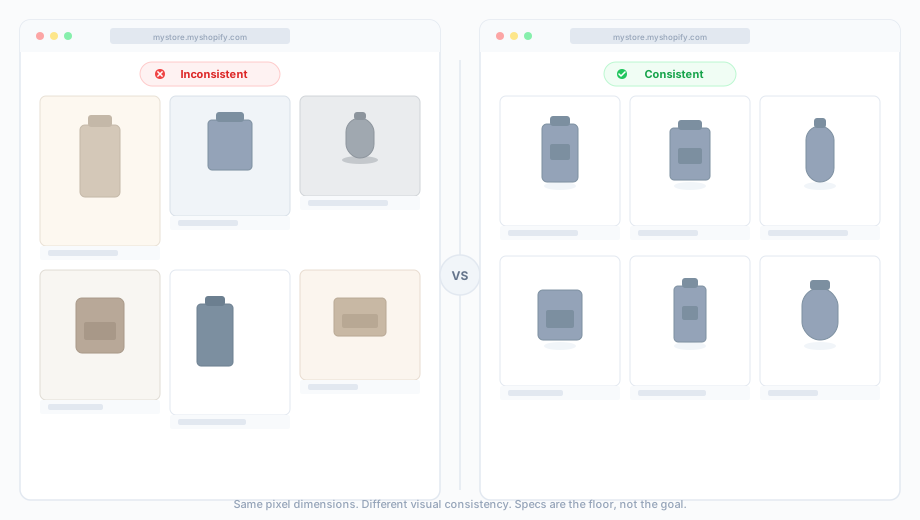
Getting the right dimensions is step one. The harder problem is keeping every product image consistent across your catalog. If you need to brush up on photography fundamentals first, our product photography setup guide covers lighting, backgrounds, and camera settings for ecommerce.
Here's what happens in practice: you photograph your first batch of products. You crop everything to 2,048 x 2,048 px. The grid looks perfect. Then three months later you add new products, and the photos were taken with slightly different lighting, a slightly different background shade, and cropped just a bit differently. The grid still looks technically correct — same pixel dimensions — but visually it looks like two different stores.
This is the catalog consistency problem, and pixel dimensions don't solve it. Consistent image dimensions are the easiest dimension of Shopify catalog consistency to fix; the harder dimensions — lighting, color temperature, shadow direction, background tone — are covered in our product photo consistency deep dive.
What actually makes a product grid look consistent:
- Same aspect ratio and dimensions (pixel specs — this part is easy)
- Same white balance across all photos (same color tone)
- Same background color — not approximately white, exactly the same white
- Same lighting angle and shadow direction
- Same crop style (product filling the same proportion of the frame)
Getting all five right, across hundreds of products shot over months, is where most brands struggle.
How FrameOnce Keeps Your Shopify Catalog Consistent
FrameOnce is built specifically for this problem. You take your best product photo — the one where every element is exactly right — and save it as a Style Preset.
Every subsequent product image you upload gets automatically matched to that reference. FrameOnce corrects the white balance, adjusts background consistency, matches lighting and shadow, and calibrates color across your entire catalog.
The result: a Shopify store where every product image looks like it was shot in the same session, with the same camera, by the same photographer — even if the reality is twelve months of product additions shot by three different people.
You can set different presets for different product lines — one for white background hero shots, another for lifestyle images, another for a seasonal collection. Each image type gets its own standard, automatically applied.
To name the boundary clearly: FrameOnce enhances the real product photos you took for your Shopify store. It does not generate fake products from prompts or fabricate stand-in imagery — every listing image still represents your actual inventory (read our Real Photos policy).
FrameOnce's free tools are live now. Run a free shop critique to see exactly where your catalog drifts, no signup needed. The full paid catalog workflow (Style Presets, batch processing, Etsy/Shopify integration) is in private testing and launches summer 2026; join the waitlist for double credits when paid plans are ready.
Shopify Image Size Quick-Reference
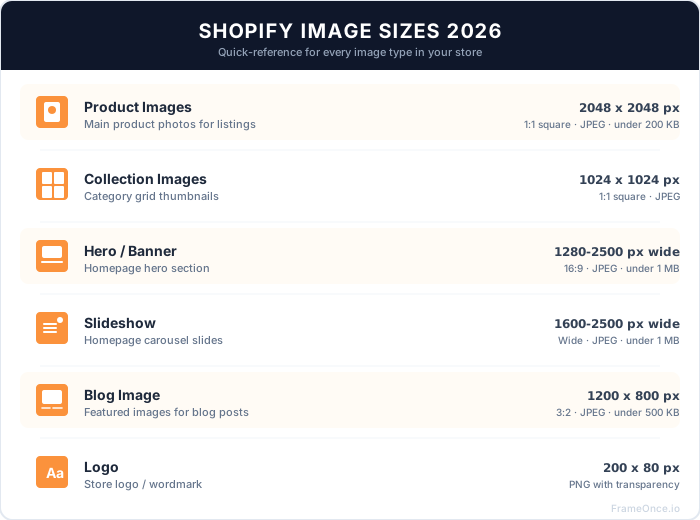
Print this out or bookmark it.
Product images
- 2,048 x 2,048 px | 1:1 square | Under 200 KB | JPEG
Collection images
- 1,024 x 1,024 px | 1:1 square | Under 20 MB | JPEG
Homepage hero / banner
- 1,280-2,500 x 720-900 px | 16:9 | Under 1 MB | JPEG
Slideshow images
- 1,600-2,500 x 500-1,000 px | Wide | Under 1 MB | JPEG
Blog post featured image
- 1,200 x 800 px | 3:2 | Under 500 KB | JPEG
Logo
- 200 x 80 px (up to 450 x 250 px) | PNG with transparent background
Frequently Asked Questions
What is the best image size for Shopify products?
2,048 x 2,048 pixels at a 1:1 (square) aspect ratio. This gives you sharp zoom functionality and loads fast across all devices. Keep the file size under 200 KB for best performance.
Does Shopify have a minimum image size?
For the zoom feature to work, images must be at least 800 x 800 pixels. Below that, customers can't zoom in on product details, which typically hurts conversion rates.
What image format should I use for Shopify?
JPEG for all product photos, banners, and lifestyle images. PNG for logos and images requiring transparency. Shopify automatically delivers WebP to supported browsers, so you don't need to convert to WebP yourself.
Can I upload different aspect ratios for different products?
Technically yes, but it will create an inconsistent grid. Some images will be taller, some wider, and the collection page will look uneven. Stick to the same aspect ratio (1:1 is safest) for all your main product images.
Why do my Shopify images look blurry on mobile?
Usually because the source image is too small. Make sure you're uploading at least 800 x 800 px — ideally 2,048 x 2,048 px — before Shopify resizes for mobile.
How many product images should I upload per product?
Most eCommerce best practices recommend at least 4-6 images per product: front, back, detail close-up, lifestyle, and scale reference. More images reduce purchase hesitation and return rates.
Does Shopify compress my images automatically?
Yes — Shopify's CDN serves optimized versions for different devices. But it's still worth compressing images before uploading. Shopify's starting point is your uploaded file; a smaller upload means faster processing and a smaller compressed result.
Before You Publish: Shopify Image Checklist
Dimensions
- Product images: 2,048 x 2,048 px
- All product images use the same aspect ratio (1:1)
- Hero/banner images: 1,280-2,500 px wide
- Blog images: around 1,200 x 800 px
File size
- Product images: under 200 KB
- Banners: under 1 MB
- All images compressed before uploading
Format
- Photos saved as JPEG
- Logo saved as PNG
Consistency
- All product images have the same background color
- All product images have the same crop style
- Product images match existing catalog in lighting and color tone
Final Thought: Specs Are the Floor, Not the Goal
Meeting Shopify's image size requirements is the minimum. Every product image in your store being the right size, the right format, and looking visually consistent with every other product — that's the goal.
The technical specs in this guide get you compliant. For producing the photos themselves, see our complete product photography guide for ecommerce fundamentals, our white background product photography guide for the in-camera workflow behind a clean product grid, or our clothing photography guide and jewelry photography guide for category-specific techniques. If you're deciding between DIY and outsourcing, our product photography pricing guide covers the cost tradeoffs. A system for keeping your catalog consistent as it grows — whether that's a documented photography setup or a tool like FrameOnce — gets you to a store that converts.
Ready to keep every Shopify image consistent? Run a free shop critique to see exactly where your photos drift today — no signup needed. Or join the waitlist for double credits when the paid catalog workflow launches summer 2026.
FrameOnce Team
FrameOnce Team
Related Articles
Product Photography Pricing: What to Expect in 2026
Product photography pricing in 2026: per-image ($12–$500+), hourly, and day rates explained. Budget guide by business stage with real 2026 market data.
Catalog Photography: How to Keep 100+ Product Photos Looking Like One Cohesive Brand
Keep 100+ product photos looking cohesive: workflow, lighting standards, color management, and tools for ecommerce sellers at scale.
Product Photo Consistency: The Catalog Killer Most Sellers Ignore
Inconsistent product photos quietly kill conversions. Why catalog consistency matters and how to achieve it across hundreds of products at scale.
Stay Updated
Honest product photography tips delivered to your inbox. FrameOnce enhances the photos you take, real photos, never generated.